Excel ingest
This page describes how Excel files (.xls and .xlsx) are ingested with ADP.
It explains which spark_read_options are relevant for Excel ingest, how they
affect the selected workbook data, and which defaults and limitations apply.
Excel files in ingest
Spark can read Excel files directly, specifically files in the .xls and .xlsx formats.
Excel files are more complex than flat file formats that contain only one table,
but their ingestion only requires several excel specific spark_read_options.
To understand these options you must first understand that Excel workbooks can contain multiple worksheets, multiple tables on the same worksheet, and even implicit data such as formulas that must be interpreted by the software opening the file.
By contrast, a simpler format such as CSV typically contains a single table.
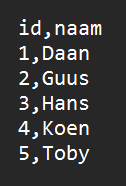
A CSV file usually contains a single table.
When you open an Excel file, you may see multiple tables on one worksheet and multiple worksheets in the same file. If you want a computer to read data from an Excel file that is not limited to one simple table on one sheet, you must tell it where the relevant data is located.
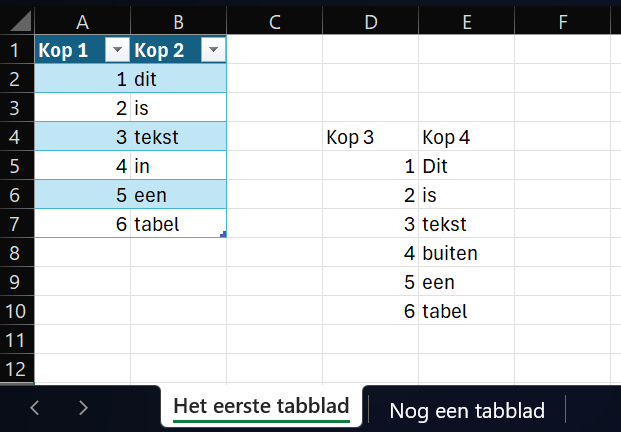
Excel files can contain multiple tables and worksheets.
Ingest and spark_read_options
To understand how Excel ingest works, it helps to compare it to an ingest pattern that may already be familiar. Below is an example of an ingest that reads a table from an MSSQL server.
name: mock_layer
variables:
- name: server
  values:
    dev: dev-sqls-adp-01.database.windows.net
    tst: tst-sqls-adp-01.database.windows.net
    acc: acc-sqls-adp-01.database.windows.net
    prd: prd-sqls-adp-01.database.windows.net
sources:
- type: mssql
  name: source1
  config:
    server: ${{{{ variables.server }}}}
    database: sqld-adp-01
    auth_type: sql
    username: ${{{{ secrets.sqld-adp-01-admin-username }}}}
    password: ${{{{ secrets.sqld-adp-01-admin-password }}}}
entities:
- name: mock_table_sql_server
  source:
    name: source1
    config:
      spark_read_options:
        dbtable: 'dbo.mock_table'
  settings:
    keys:
    - id
In the entity source configuration, we specify spark_read_options. These are the
options Spark needs in order to read the data. In this MSSQL example, we provide the
table name through dbtable.
For CSV files, the same section is used to tell Spark things like which delimiter is used and whether a header is present. The image below shows a CSV file without a header and with a non-standard delimiter.
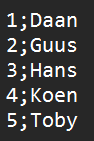
A CSV file without a header and with a custom delimiter.
A CSV ingest might look like this:
name: mock_layer
sources:
- type: smb
  name: source1
  config:
    root: saadp01.file.core.windows.net\\fssaadp01\\smb
    auth_protocol: negotiate
    username: localhost\saadp01
    password: ${{{{ secrets.smb-adp-01-password }}}}
entities:
- name: mock_table_smb
  source:
    name: source1
    config:
      adls_file_pattern: 'username.csv'
      spark_read_options:
        file_type: csv
        delimiter: ';'
        header: true
  settings:
    keys:
    - _Identifier
Here, delimiter sets the separator and header declares that the file contains
column headers.
Reading an Excel file works in exactly the same way: the only real difference is
which spark_read_options you provide. An Excel ingest can look like this:
name: mock_layer
sources:
- type: smb
  name: source1
  config:
    root: saadp01.file.core.windows.net\\fssaadp01\\smb
    auth_protocol: negotiate
    username: localhost\saadp01
    password: ${{{{ secrets.smb-adp-01-password }}}}
entities:
- name: mock_excel_uppercase_smb
  source:
    name: source1
    config:
      adls_file_pattern: 'testexcel.xlsx'
      spark_read_options:
        file_type: excel
        dataAddress: Sheet1!A2:H10
        headerRows: 1
  settings:
    keys:
    - prefix1.Column5
    columns_to_lowercase: false
With the Excel ingest above, we read the following worksheet content:
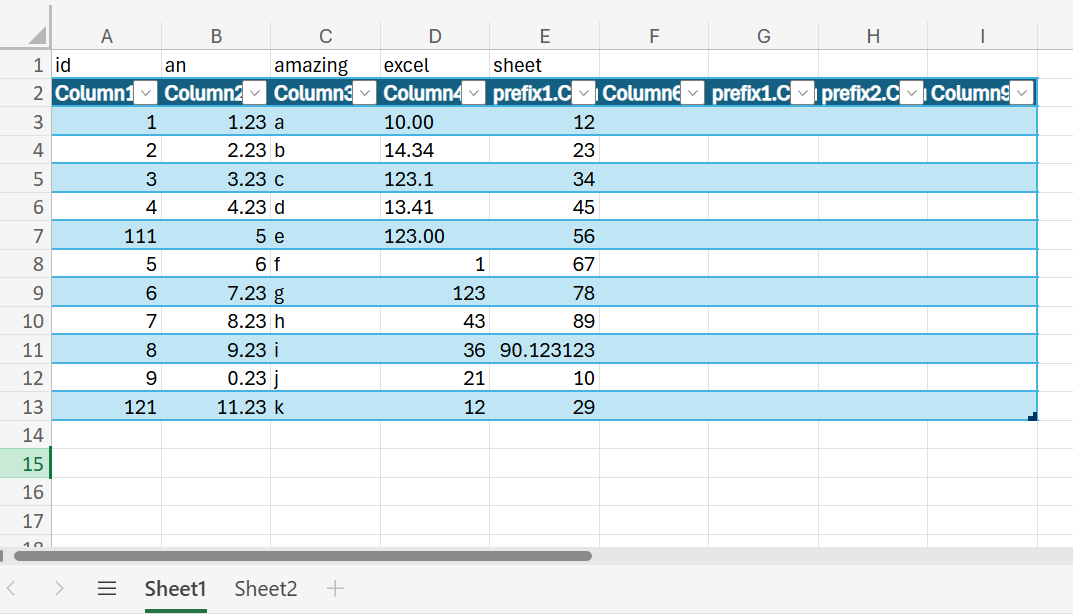
The selected range in the Excel workbook.
With dataAddress, we specify where the relevant data is located. In this example,
the data is on Sheet1 and spans from cell A2 in the top left to H10 in
the bottom right.
With headerRows, we specify that this range contains one header row. Because the
dataAddress starts at row 2, that means row 2 is treated as the header row.
Arguments and defaults
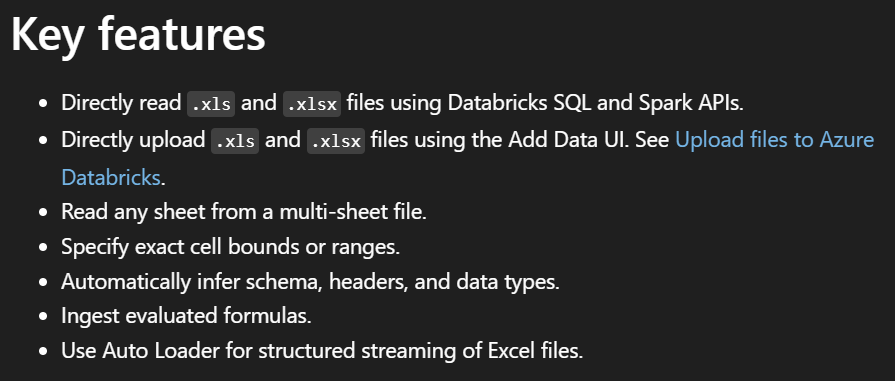
These options do not always need to be set explicitly, because they have useful default values. The official Databricks documentation describes the supported Excel options in more detail:
Read Excel files - Azure Databricks | Microsoft Learn
This documentation contains several useful details.
Formula columns
One useful capability is support for reading formula columns, meaning values that are calculated in Excel rather than stored directly as static cell values.
The example below shows a formula column that adds the values of two other columns.
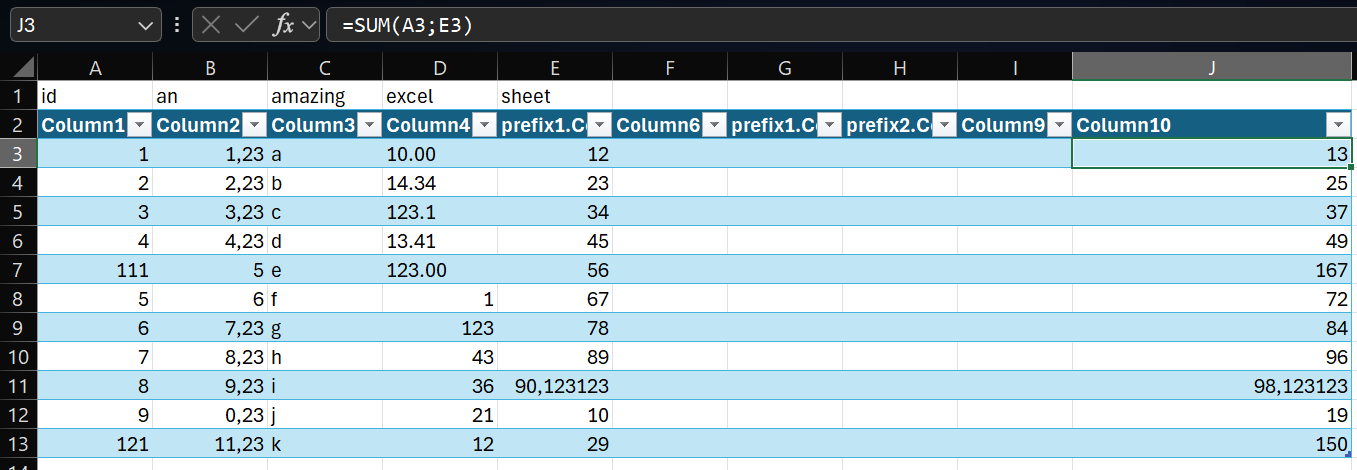
A formula column inside the Excel sheet.
The calculated values can be ingested as data.
dataAddress
The default value of dataAddress is all cells from the first worksheet. You can
also provide only a worksheet name, in which case all cells from that worksheet are
read.
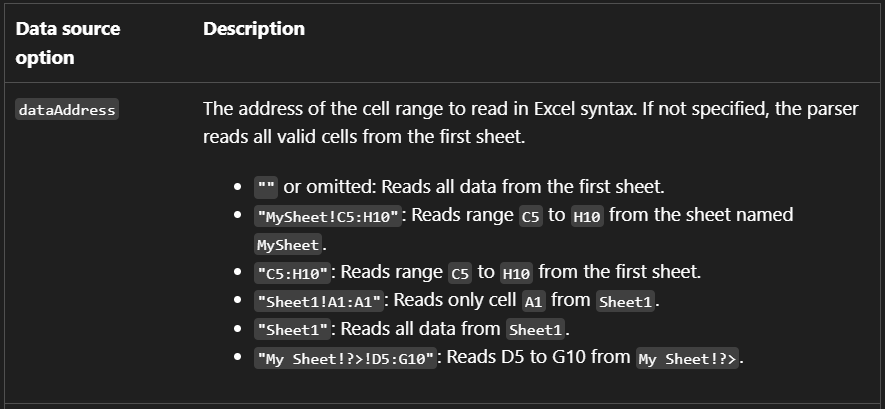
dataAddress defaults to all cells from the first worksheet.
headerRows
The default value of headerRows is 0. In that case, column names are
generated automatically.
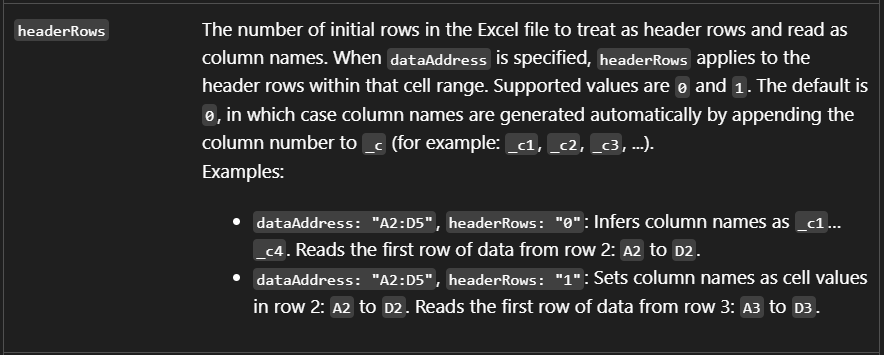
headerRows defaults to 0.
operation
The default value of operation is readSheet, which reads worksheet data. The
other supported option is listSheets. That option is less useful for ingesting
data, but it can be helpful if your goal is to retrieve the available worksheet
names in the workbook.
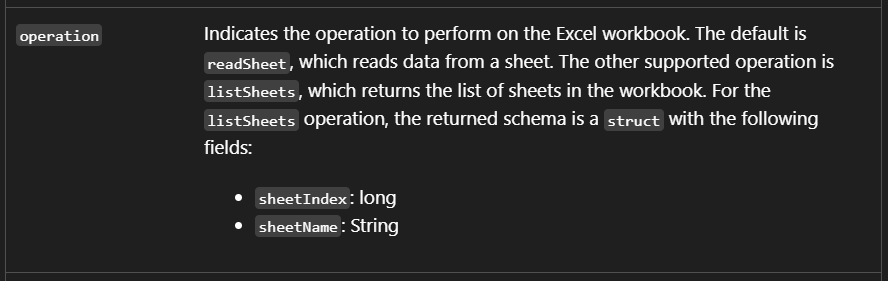
operation defaults to readSheet.
Date and timestamp formats
You can also customize date and timestamp parsing using dateFormat and
timestampNTZFormat. Their defaults are yyyy-MM-dd and
yyyy-MM-dd'T'HH:mm:ss[.SSS].
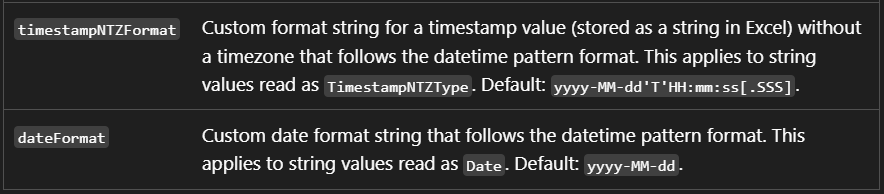
Default formats for dates and timestamps.
Limitations
Excel ingest also has some limitations. For example, only a single header row is
supported. In practice, this means you can use 0 or 1 for headerRows.
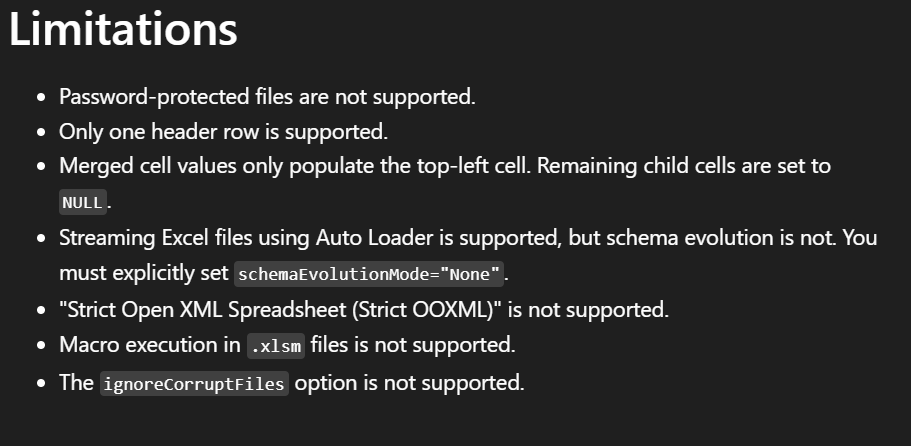
Only a single header row is supported.
FAQ
The Microsoft documentation also includes a FAQ section that may help answer common questions.
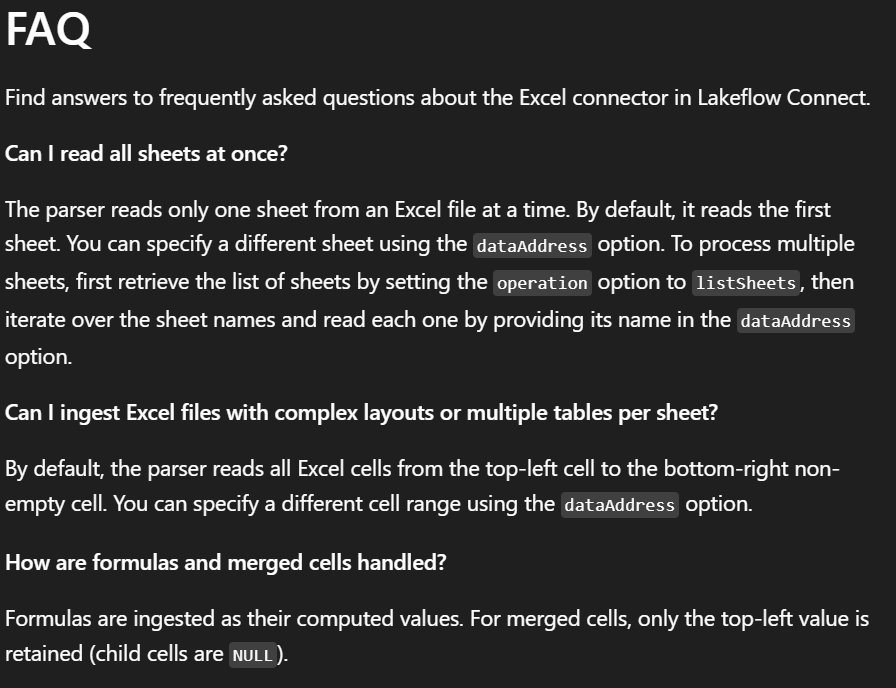
FAQ excerpt from the official documentation.
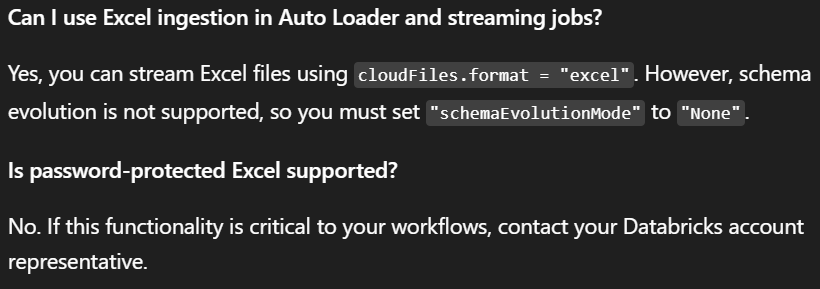
More FAQ details from the official documentation.